[NEW] Command (Macro) mode – Execute a sequence of inputs with individual timings
Command (Macro) mode
From version 7.4, JoyToKey adds a new “Command” tab to the button assignment dialog.
Previously, you could trigger multiple key strokes in sequence with the “Keyboard (Multi)” tab’s sequence mode, which presses Input1 through Input4 in order. However, it supported only up to 4 inputs, and every input was held for the same duration.
The new “Command” mode enhances this:
- There is no limit on the number of steps (rows)
- You can specify the hold duration (in milliseconds) for each row
- Each row can have up to 4 keyboard/mouse inputs, which are pressed simultaneously
It’s useful when you want to execute a fighting game command or a fixed series of operations (a macro) with a single button press.
Setup Instructions
- Open the assignment dialog for a button and select the “Command” tab
- Click “Add” to add a row (the new row is selected automatically)
- In “Edit the selected row” at the bottom, click an input box and press a key to assign it
- Right-click an input box to clear it, or to assign special keys, mouse inputs, or other buttons’ assignments
- Enter how long the row should be held in the “Duration” box (msec)
- Repeat steps 2-4 to add more rows. Use “Move Up” / “Move Down” to reorder rows, and “Delete” to remove a row
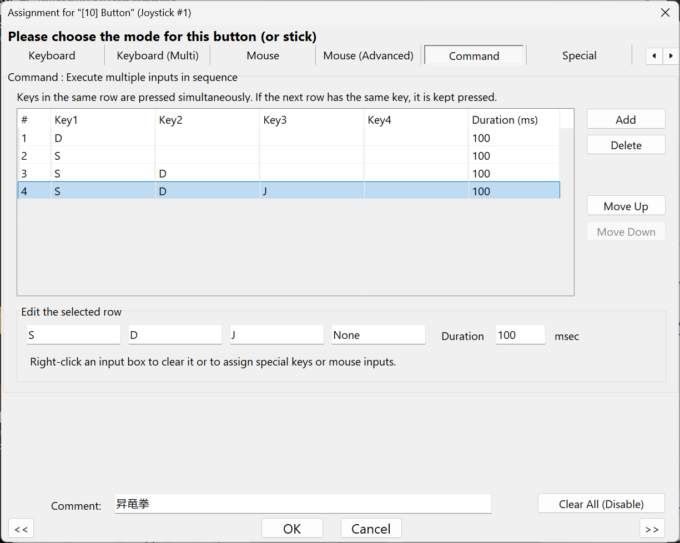
Defined rows are shown with the normal background color, while the empty area below them is grayed out, so you can easily see how many rows are defined.
How it works
- Rows are processed from top to bottom, and each row is held for its own duration
- Inputs in the same row are pressed simultaneously
- If the next row has the same key, the key is kept pressed (only the changed keys are pressed or released)
- A row without any key works as a “wait” step
- Once you press the button, the command runs to the end, even if you release the button right away
- If you press the button again while the command is running, all pressed keys are released and the command restarts from the first row
Examples
Example 1: Type A and B while holding Ctrl
| # | Key1 | Key2 | Duration (ms) |
|---|---|---|---|
| 1 | L-Ctrl | 50 | |
| 2 | L-Ctrl | A | 50 |
| 3 | L-Ctrl | 50 | |
| 4 | L-Ctrl | B | 50 |
Since Ctrl appears in every row, it stays pressed from the beginning to the end. The actual inputs are:
- Press Ctrl → press A → release A → press B → release B → release Ctrl
Example 2: Press A, wait 0.5 seconds, then press B
| # | Key1 | Duration (ms) |
|---|---|---|
| 1 | A | 100 |
| 2 | 500 | |
| 3 | B | 100 |
Row 2 has no key, so it just waits for 500 msec without pressing anything.
Advanced: Trigger other buttons’ assignments (virtual buttons)
In JoyToKey, you can right-click an input box and choose “Trigger Other Button’s Assignment” to call the function assigned to another button. The target can even be a button that doesn’t exist on your controller, such as Button21 (a “virtual button”).
This also works in each row of a command. For example, you can include a function assigned to another button in the middle of a command.
For more details, see Assign multiple behaviors for one button.
Advanced example: Repeat a command at a fixed interval
The “Command” tab itself doesn’t have an auto-repeat option. However, by combining it with a virtual button, you can repeat the entire command every N seconds.
- On a button that doesn’t exist on your controller (e.g. Button21), set up the command you want to repeat in the “Command” tab (e.g. double click)
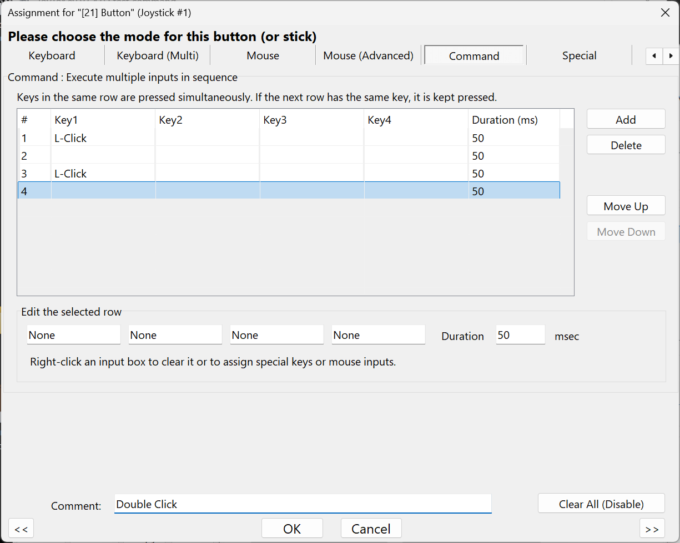
- On the button you actually press, open the “Keyboard” tab, right-click an input box, and choose Button21 from “Trigger Other Button’s Assignment”
- In the same dialog, check “Auto Repeat”, and enter the interval (e.g. 10) in “or 1 repeat per __ seconds”
- Also check “Toggle between ON and OFF”
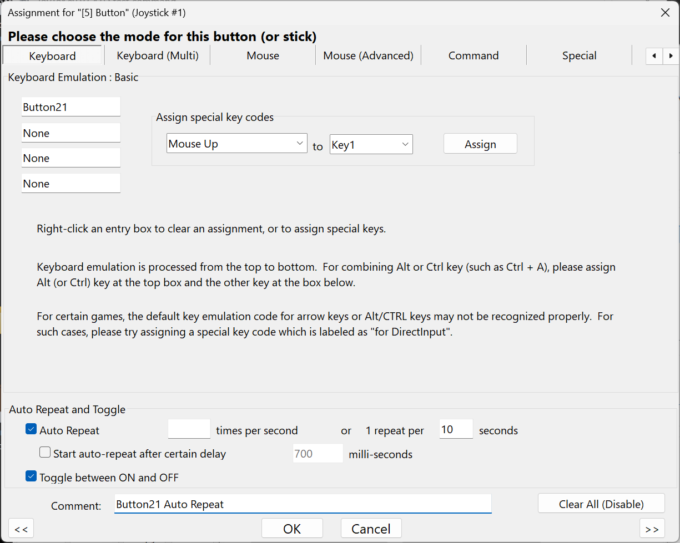
Now, press the button once and the command runs from the beginning every 10 seconds. Press the button again to stop it.
Note: Set the auto-repeat interval longer than the total length of the command (the sum of all rows’ durations). If the interval is shorter, the command restarts from the beginning before it reaches the end.
Summary
With the “Command” mode, you can execute any number of keyboard/mouse inputs in sequence, with your own timing for each row. Combined with virtual buttons and auto repeat, you can even repeat a fixed series of operations automatically at a regular interval. Please give it a try!