Basic Features of JoyToKey
Main Window
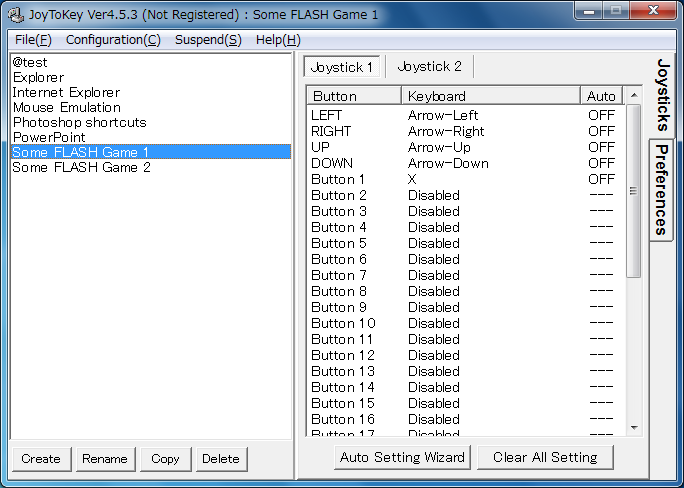
You can create multiple profiles in the left panel. Right panel shows the button-key assignments for the selected profile.
In the example below,
- Sticks are assigned to arrow keys
- When "Button 1" is pressed, key input "X" will be emulated
Button Assignment Window
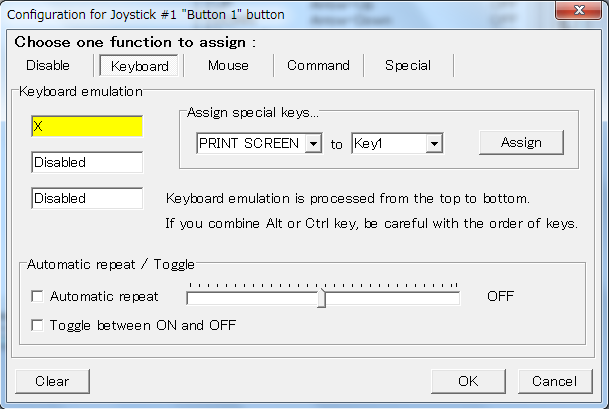
For each joystick button, you can assign a keyboard input or a mouse input.
For keyboard emulation, it can be a single keyboard input (e.g. 'X' key in the example below), or it can be a combination of multiple keys like
Alt+F4, or it can be a special purpose key such as "PRINT SCREEN" key.
Similarly, mouse emulation mode will enable you to assign mouse cursor movement, or wheel movement, or left/middle/right click.
Auto Setting Wizard
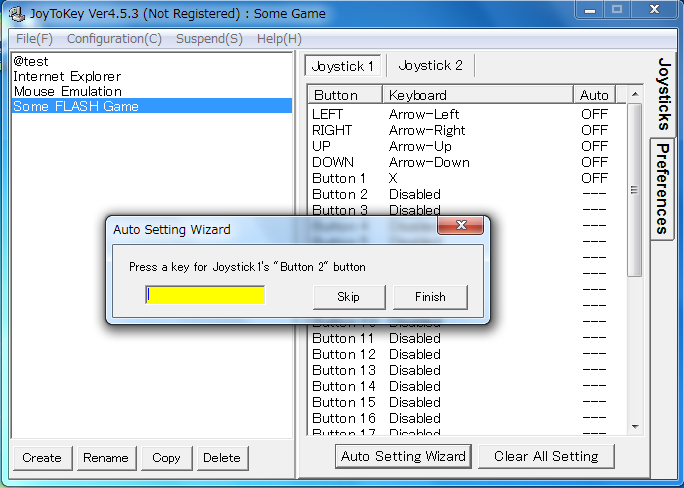
Auto Setting Wizard will help you to configure basic key assignments in less than a minute!
Associate profiles to target applications
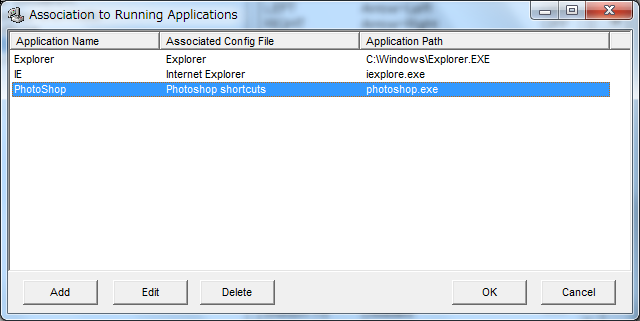
JoyToKey can automatically switch an active profile based on the current focused application. In order to configure it, go to menu: Settings -> Associate profiles with applications.
Next: Advanced Features